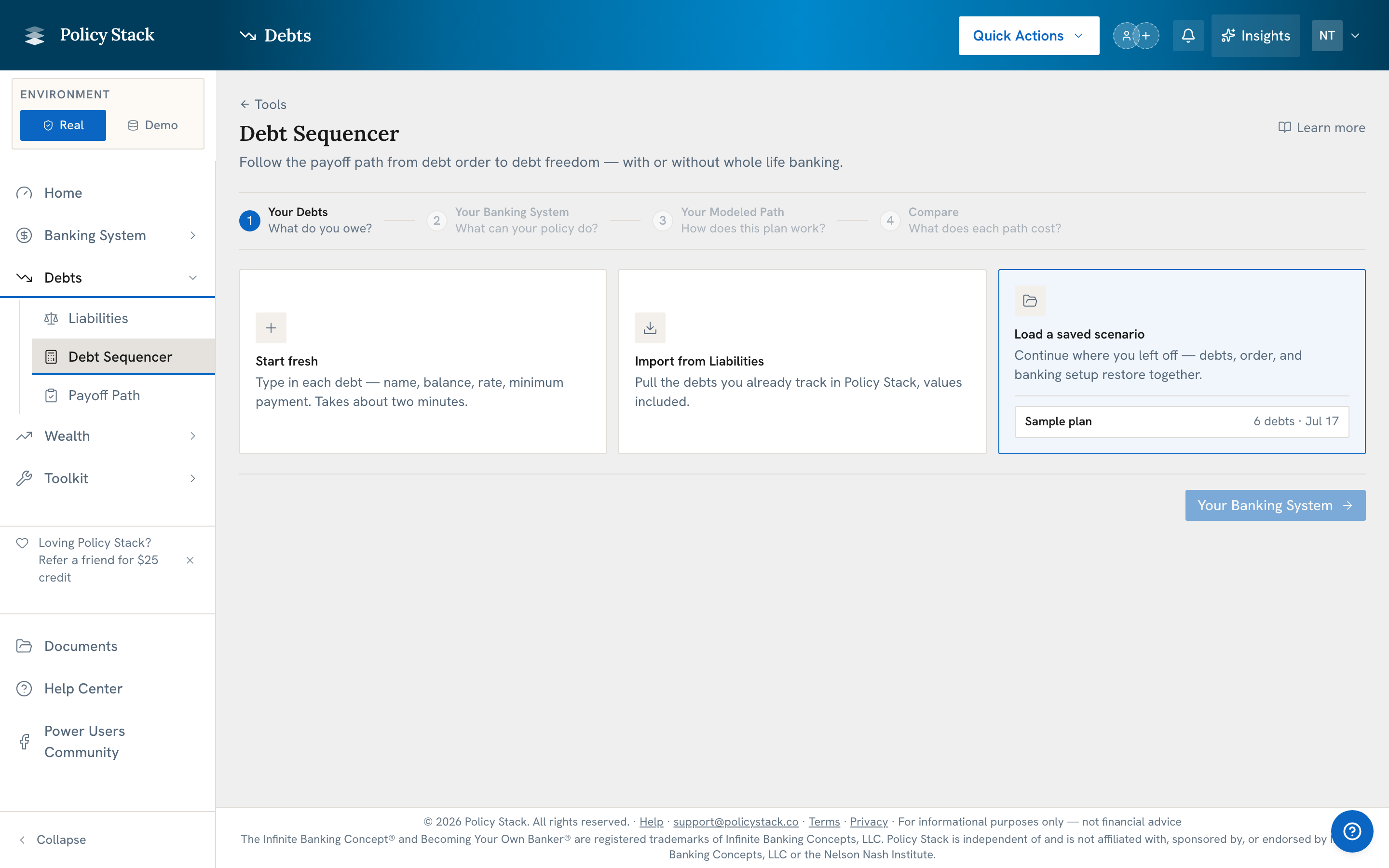
Debt Payoff Path has five stages. Sequencer covers Steps 1–4: compare ways to pay outside debts and model a whole life banking plan that uses and pays back policy loans. Payoff Path is Step 5: track an eligible selected scenario month by month.
This feature requires Builder Pro
What Sequencer Does
Sequencer uses the debts you enter, such as credit cards, car loans, and mortgages. It compares payoff timing and interest without recommending a plan.
Sequencer models how outside debts may be paid off. With a whole life banking layer, it also models policy-loan draws and repayment. Payoff Path tracks a selected eligible plan against recorded monthly payments and balances.
Comparison Panels
Minimum payments only
This path makes only the minimum payment on every debt. It gives you a starting point for comparing the other plans.
What to look for: Total interest paid and how long the payments last. Compare this path with another path to see what the extra monthly money changes.
Highest rate first
This plan sends extra money to the debt with the highest interest rate and pays the minimum on every other debt. When one debt is paid, its old payment moves to the next debt.
What to look for: This approach typically results in the lowest total interest paid over the life of all debts.
Lowest balance first
This plan sends extra money to the debt with the smallest amount owed. When one debt is paid, its old payment moves to the next debt.
What to look for: This plan may pay one debt sooner, even when it does not save the most interest.
Whole Life Banking Strategy
The whole life banking plan uses policy-loan money to pay outside debts. The plan then pays back the policy loan. The policy cash value stays in the policy and may keep growing under the policy terms.
What to look for: This approach models the effect of routing debt payments through your banking system. It shows total interest paid to external lenders vs. loan interest within your system, and tracks how loan repayment keeps your system whole.
The visible Game Plan focuses on the whole life banking path when that layer is configured. Highest rate first and lowest balance first still function as comparison math, but the action sequence shown in the Game Plan stays centered on the policy-loan path.
Configuring the Whole Life Banking Strategy
Step 2 asks one question at a time. Each question is a numbered row: the one you are on is open, the ones you have answered collapse to show your answer, and a question that does not apply to your situation is not shown at all. You can reopen any earlier row to change an answer.
The first question is where the cash value comes from, with three starting situations:
I have a policy — start from your recorded cash value and loan balance
I'm starting one — build the cash value from the premiums you plan to pay
Both — start from your recorded policy, then add one you're planning
You can move back between these choices without losing values already entered. Existing policies contribute their recorded starting capacity; planned policies add separate Modeled capacity streams on the combined path.
For recorded policies, Step 2 then asks which part of your premium counts here — Just the base premium (the part you have to pay to keep the policy in force) or Base premium plus PUA (that required part, plus the extra you already pay in to build cash value). Planned policies are not asked, because a policy you have not started yet has no recorded premium to divide.
Underneath the questions, an always-visible breakdown — Here's what you're paying each month — itemises what your money is already committed to, and ends with the field where you say what you can put toward all of it (monthly or annually, depending on your budget cadence). Policy premiums and debt payments always come from the same funding, so Step 2 states the premium being committed rather than asking where it comes from, and shows a shortfall row when minimum debt payments plus the selected premiums exceed the amount you entered.
There is one special case. When a confirmed policy illustration sets the premium, the tool keeps that premium in the plan and shows how much more money the plan needs each month.
The policy details within those paths use the following approaches:
Use a current policy
You already have a policy with available cash value. Enter:
Cash value available for a loan — the cash value the model can use for a policy loan
Policy loan interest rate — the rate charged by the insurance company
Yearly policy values — required carrier illustration or manually entered premium and cash-value values for projection years 1–5
The sequencer uses cash value from the current policy to pay outside debts right away. It may pay all or part of them. The paid outside debt stops charging interest. The policy loan then charges interest, and freed payments follow the plan choice made in Step 2.
When the cash value is not enough for every debt: The sequencer starts with the first debt in the chosen order. The extra monthly money keeps paying the debts that remain.
For a current policy, you can select a policy already recorded in Policy Stack. The tool uses its latest recorded total cash value, cash value available for a loan, and policy-loan balance. The starting policy loan is included in the plan, and new planned loans are added to it. If you do not select a recorded policy, type the starting cash value and policy loan interest rate, then provide annual premium and cash-value values for projection years 1–5 from an illustration or manual entry. The sequencer does not substitute an example growth rate when those values are missing.
Start a new policy
You plan to start a new policy. Enter:
Base premium — the regular policy premium
Extra premium — added premium that buys paid-up additions and builds cash value
Policy loan interest rate — the rate charged by the insurance company
Provide annual premium and cash-value values for projection years 1–5 by entering them manually or uploading and confirming a policy illustration. The sequencer does not create example yearly values from the premium. The schedule stops at its last entered year; it does not extend scheduled premiums or schedule-based cash-value growth beyond that row. Any separately selected post-payoff PUA contribution remains a separate modeled amount. Add more years for a longer projection. For multiple planned policies, enter combined pool values for each year and account for their start years. Only illustration sources you include in the projection are added together. A source kept for tracking does not change the plan. For an older illustration, enter the current policy year and current cash value available for a loan; the schedule uses the values provided for those years.
Choose whether premium is paid each month or each year. Monthly premium and cash value are spread across the months. Yearly premium and its cash value are added at the policy anniversary. This is an estimate, not a promise from the insurance company. A saved plan keeps this choice.
The confirmed illustration is also the source of truth for scheduled premium. If that premium is higher than the amount entered above minimums, the whole life layer still models the illustration and shows a warning with the extra cash needed. Manual and illustration premium schedules still must fit the entered amount.
Extraction keeps each printed ledger separate. Current (non-guaranteed) end-of-year values are the default illustration source. When a document also contains a guaranteed ledger, you can choose to use guaranteed values instead, and the guaranteed ledger is preserved either way as a separate comparison line — values are never blended across ledgers. A document containing only guaranteed values asks for that choice explicitly.
An inforce illustration is saved for tracking by default. Including it in the projection is an explicit choice made during review. When included, the model starts from the policy's current illustration year, with the confirmed current accessible cash value as opening capacity and the illustration's future rows as growth.
The sequencer then models a staged loan sequence. As premium builds cash value, a policy loan can clear the next debt. The user may also enter a first policy loan amount that pays only part of the first debt. By default, extra monthly money pays down the policy loan before the next planned loan. The user can instead keep paying outside debts first; in that case, unpaid policy-loan interest is added to the modeled loan balance each month.
After all debts are paid, the model keeps the monthly money available by default. Sending extra money to the policy is available only after the user enters how much extra premium the policy can accept each month. The model never sends more than that amount to paid-up additions; any amount above the limit stays as cash.
If policy year 1 already includes a one-time initial contribution, keep it in the annual premium row and do not enter the same contribution again elsewhere. This prevents the model from counting the funding twice.
How to Use Sequencer · Step 1
Navigate to Debt Payoff Path — click it in the Debts section; the tool opens at Sequencer · Step 1
Add your debts — enter each external debt with its balance, interest rate, and minimum payment, and choose the payoff order: highest rate first, lowest balance first, free a payment first, or your own order
Set your monthly allocation — enter the funding available to the modeled path as a monthly or annual figure; conventional paths keep the debt-only calculation
Add policy facts — choose current policies, a planned new policy, or both; choose the premium that comes from the same monthly money as the debt payments
Review the yearly policy values — choose where they come from: use a carrier illustration, enter values manually, or use example CV growth (a disclosed 4% assumption). When you import recorded policy values and a selected policy has exactly one confirmed Illustration Analytics record, its current values are added to this model automatically; a message confirms you do not need to upload or import it again. If multiple confirmed illustrations exist for a policy, choose the record to use. A guaranteed-only record still requires an explicit guaranteed-scale choice.
Set the plan choices — in Step 2, choose where each freed debt payment goes: the next debt, the policy loan, extra premium when confirmed policy room exists, or keep the money; when a policy path is configured, Step 3 adds an optional first policy loan amount, where your extra monthly money goes while a policy loan is open and outside debts remain, and an optional destination for the money after your last debt is paid (the payoff order set in Step 1 shows there as read-only)
Review the handoff — confirm the debt order, monthly funding, rollover rule, active period, and policy schedule when applicable
Create and open — save the scenario and open its preloaded Payoff Path
Reading the Results
The comparison panels show:
Months until paid — how many months the plan takes to pay every debt
Total interest paid — the total cost of interest across all debts
Interest saved — how much less interest is paid than with minimum payments only
Monthly payments — how payments change as each debt is paid
Where freed payments go — what the plan does with a payment after a debt is paid
You can save multiple scenarios with different extra payment amounts to explore how changes in monthly allocation affect each strategy.
Reading a policy year month by month
On the modeled whole life banking path, opening a year shows one row for each month. The three columns are Premium put into the policy, Cash value available for a loan, and Policy loan. Read from left to right: premium goes in, cash value changes, and a policy loan may use that value. The year summary shows how much cash value was added, and the grid shows when it happened.
Cash value available for a loan is total cash value minus the policy loan. It matches the total shown in the year row.
Cash value grows as premium is added. With monthly premium, the policy year shows the cash value built so far. With yearly premium, the year’s cash value arrives at the policy anniversary. The grid shows why a planned policy loan starts in one month: the cash value reached the needed amount in that month.
The cash value column is not the exact amount the insurance company will lend. The amount entered as Cash Value cushion lowers what the model may borrow. Every value in this grid is Modeled.
Saving a scenario
Saving is available on Your Debts, Your Modeled Path, and Compare — a save from any of them records everything entered so far, including the banking system configured in step 2 and the payoff order and whole life banking layer selected in step 3.
Save As creates a new named scenario.
Save updates the scenario you currently have open, in place. It appears once a scenario is loaded; before that, a single Save Scenario button names and creates the first one.
Loading a scenario is offered on Your Debts only, because loading replaces whatever is currently entered. In that saved-scenario list, use the archive control beside a scenario to move it to Archived after you confirm; restore it from Archived in the same list.
Starting a new plan
Start New appears in the tool header once anything has been entered. It clears the debts, banking system, and settings currently in the sequencer and returns you to the start screen, where you can start fresh, import from Liabilities, or load a saved scenario. Policy Stack asks you to confirm first.
Clearing is reversible. An Undo banner appears above the tool and restores the entire session — debts, banking system, payoff order, the scenario you had open, and the step you were on. The banner stays until you dismiss it or begin entering a new plan; once a debt exists again, Undo retires rather than replacing the new work.
Saved scenarios are not affected in either case. A scenario you had open is still in the saved list and can be loaded again from that same screen.
From Planning to Monthly Tracking
Sequencer is Step 1 of Debt Payoff Path. Payoff Path is the final step for ongoing monthly tracking. Starting a scenario copies the selected strategy, debt order, starting balances, funding, rollover behavior, modeled milestones, and whole life banking configuration when applicable into a fixed baseline. A household has one active path; starting another moves the previous path to history with its recorded periods intact.
Later edits to the source scenario do not silently rewrite that active baseline. In Payoff Path, record what actually happened, compare the period with the modeled row, close the month after every action is recorded or skipped, and continue with the next period generated from the same saved strategy.
The Game Plan
The Game Plan turns the whole life banking path into a month-by-month sequence:
Monthly budget — set the total you put toward debt each month; it never drops below your combined minimum payments
Debt-free date — the projected month you clear the last debt, with total months and total interest
Focus steps — a numbered order showing the modeled sequence, monthly payment, clear date, and interest on each debt
Policy path — a policy loan can pay all or part of the first debt, later loans can clear other debts, and the plan shows policy value and cash kept in the same ending month as the path without a policy
All Game Plan figures are Modeled and illustrative.
Policy Stack is a tracking and visualization tool. It does not provide financial advice, recommendations, or opinions on what you should do with your banking system.
Policy Stack is independent of and is not affiliated with, sponsored by, or endorsed by Infinite Banking Concepts, LLC or the Nelson Nash Institute.